
What This Page Is For
The Store tab is used when your WordPress site runs a WooCommerce shop and you want OneLence to receive purchase-related conversion data.
Use this page to decide:
- whether WooCommerce purchases should be sent to OneLence
- whether renewal payments should also count
- how refunds should be handled
- which order value should be sent to OneLence
- whether recent tracked store conversions are appearing as expected
When This Page Is Relevant
This page is only relevant when WooCommerce is installed and active on the site.
If your website does not use WooCommerce, you can skip this page. OneLence Connect can still be used for attribution tracking and business events without store tracking.
What You Can See
The Store tab changes depending on whether WooCommerce is detected.
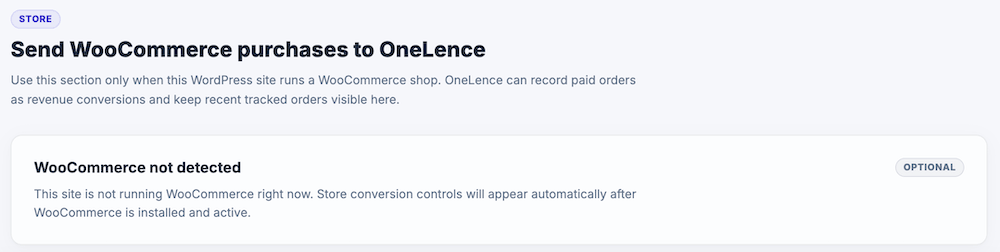
If WooCommerce is not detected
The page shows an informational card explaining that WooCommerce is not currently active on the site.
In this case, no store conversion settings are available yet.
If WooCommerce is detected
The page shows the store conversion controls and recent store-conversion status.

WooCommerce Store Detected
This card confirms that the plugin found WooCommerce on the site.
It also shows whether purchase tracking is currently turned on or off.
Track purchases
This is the main store-tracking setting.
When enabled, OneLence Connect sends WooCommerce orders to OneLence as server-side conversions.
Use this when you want OneLence to understand:
- completed purchases
- store revenue
- order-based conversions coming from WooCommerce
Important notes:
- purchase tracking depends on a valid Secret Key
- if the secret key is missing, WooCommerce orders cannot be sent securely
- if purchase tracking is turned off, the plugin will not send WooCommerce purchase conversions
Secret Key warning
If Track purchases is enabled but the site has no secret key stored, the page shows a warning.

That warning means the plugin has found WooCommerce and is ready to track purchases, but the connection is incomplete for secure server-side sending.
If you see this warning, go back to the Connect tab and review the stored connection details.
Revenue Details
This card controls which revenue-related events should count and how order values should be sent.
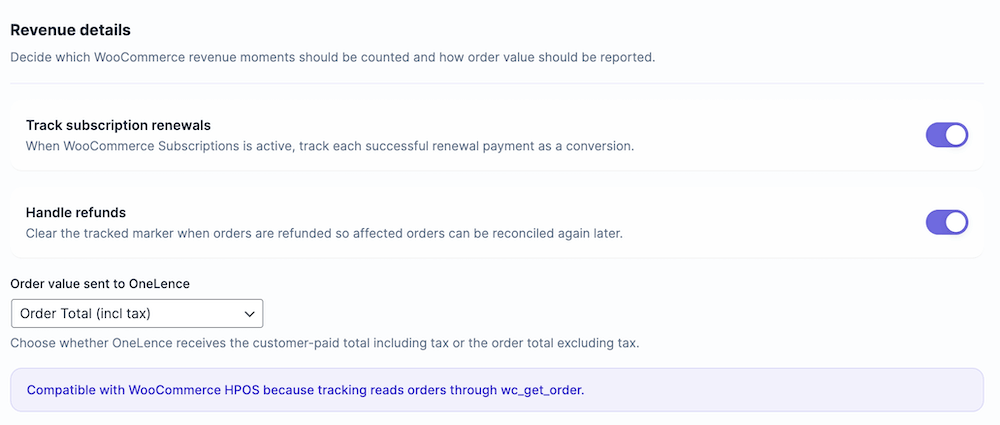
Track subscription renewals
Enable this when the site uses WooCommerce Subscriptions and you want each successful renewal payment to count as a conversion in OneLence.
Use this when:
- subscription renewals are part of the business value you want to measure
- recurring revenue matters for attribution analysis
- renewal payments should be treated as meaningful conversion events
If WooCommerce Subscriptions is not part of your setup, this setting usually does not need to be turned on.
Handle refunds
This setting controls how refunded orders are treated inside the plugin tracking logic.
When enabled, the plugin clears the tracked marker on refunded orders so those orders can be reconciled again later if needed.
Use this when:
- refunds are part of your order lifecycle
- you want cleaner long-term reconciliation behavior
- support or internal operations need refunded orders to be handled more explicitly
This does not mean refunds are automatically sent as negative conversions. It means the plugin clears the local tracked state for refunded orders so the affected orders can be handled again later if needed.
Order value sent to OneLence
This setting decides which WooCommerce order total is sent as the conversion value.
The available options are:
- Order Total (incl tax)
- Order Total (excl tax)
Order Total (incl tax)
Choose this if OneLence should receive the customer-paid total including tax.
Use this when your reporting should reflect the full amount paid by the customer.
Order Total (excl tax)
Choose this if OneLence should receive the order total without tax.
Use this when your reporting should focus on the order value before tax.
Choose the option that matches how your team wants revenue to be interpreted inside OneLence.
WooCommerce HPOS compatibility
The page also notes that the plugin is compatible with WooCommerce HPOS.
That means OneLence Connect reads WooCommerce orders through the WooCommerce order API rather than depending on older storage assumptions.
Recent Store Conversions
This section helps you confirm whether WooCommerce orders are already being tracked successfully.

If purchase tracking is turned on
The page shows the most recent tracked store conversions.
For each recent order, it can display:
- order ID
- date
- status
- value
Use this section to confirm that WooCommerce orders have already been sent successfully to OneLence.
If purchase tracking is turned off
The page shows an informational state explaining that recent conversions will appear here after purchase tracking is enabled and the first successful tracked order is sent.
If no tracked conversions exist yet
Even when purchase tracking is enabled, this section may still show that no tracked conversions exist yet.
This usually means one of the following:
- no eligible WooCommerce order has been completed yet
- the first tracked order has not been sent successfully yet
- store tracking is enabled but the setup is not fully ready yet
How Store Tracking Behaves
WooCommerce purchase tracking in OneLence Connect is designed to avoid duplicate purchase sends.
The plugin tracks WooCommerce orders as deduplicated server-side conversions and skips orders that should not be counted, such as:
- already tracked orders
- zero-value orders
- cancelled orders
- refunded orders
- failed orders
For failed delivery attempts, the plugin can retry the order send later.
Recommended Setup For Most Stores
For most WooCommerce websites, this is the best starting point:
- keep Track purchases enabled
- make sure the Secret Key is already configured in the Connect tab
- enable Track subscription renewals only if you use WooCommerce Subscriptions
- enable Handle refunds only if your team needs refund-related reconciliation behavior
- choose the order value mode that matches your reporting preference
- review Recent store conversions after the first tracked orders have come through
When You Can Skip This Page
You can skip the Store tab when:
- the site does not use WooCommerce
- purchases are not part of the OneLence setup
- the website only needs attribution and business-event tracking
Continue With The Next Setup Steps
After store tracking is reviewed, continue with the next relevant setup pages: