
What This Page Is For
The Tracking tab controls how OneLence Connect sends basic attribution data from WordPress to OneLence.
Use this page to decide:
- how WordPress should send data
- which basic signals should be tracked
- which traffic should be excluded
- which troubleshooting settings should be enabled only when needed
What You Can Configure
The Tracking tab contains four main areas:
- How WordPress sends data
- Basic attribution
- Do not track
- Advanced & troubleshooting
Most websites should start with the recommended defaults and only change the advanced options when there is a specific reason.
How WordPress Sends Data
This card controls the tracking mode.
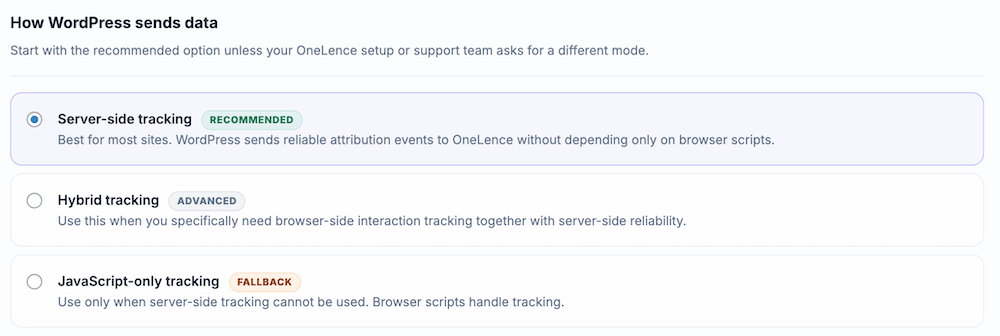
The tracking mode decides whether the plugin sends data from the WordPress server, from the browser, or from a combination of both.
Server-side tracking
This is the recommended option for most websites.
In this mode, WordPress sends attribution events to OneLence from the server side. This is the most reliable setup for most standard WordPress sites because it does not depend only on browser-side scripts.
Use this mode when:
- you want the standard recommended setup
- you want a more reliable connection between WordPress and OneLence
- you do not have a special need for browser-side interaction tracking
Important notes:
- this mode requires a valid Secret Key
- if the secret key is missing, server-side tracking cannot work
- this is the best default for most users
Hybrid tracking
This is an advanced option.
Use this mode when your setup needs browser-side interaction tracking together with server-side reliability.
This mode is meant for more specific setups where browser-side behavior matters, but you still want WordPress involved in the tracking architecture.
Use this mode when:
- OneLence support or your technical setup specifically requires it
- you need browser-side interaction tracking in addition to the plugin’s server-side setup
- you understand why a standard server-side-only setup is not enough for your use case
Important notes:
- this mode also requires a valid Secret Key
- if the secret key is missing, hybrid mode cannot work correctly
- most websites do not need this mode unless there is a specific requirement
JavaScript-only tracking
This is the fallback option.
In this mode, browser-side scripts handle tracking instead of server-side plugin ingestion.
Use this mode only when server-side tracking cannot be used.
Examples:
- your environment cannot support the server-side setup
- your OneLence setup was specifically prepared for browser-only tracking
- OneLence support asked you to use this fallback mode
Important notes:
- this mode is less preferred than the recommended server-side setup
- browser-side conditions affect the tracking more directly
- only choose this mode when there is a clear reason not to use server-side tracking
Secret Key warning
If you choose Server-side tracking or Hybrid tracking without a stored secret key, the page shows a warning.
That warning means WordPress does not currently have the required credential for trusted server-side ingest. In that case, return to the Connect tab and check the connection details.
Basic Attribution
This card controls the basic signals the plugin sends for normal attribution reporting.
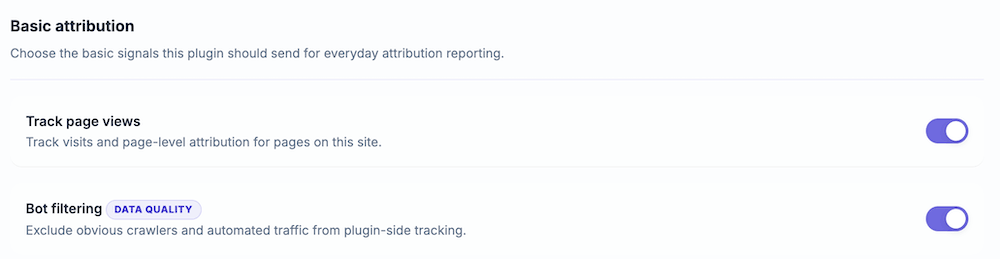
Track page views
This setting controls whether the plugin should track visits and page-level attribution for pages on the site.
When enabled, OneLence can receive the basic page visit activity needed for everyday attribution reporting.
Use this when:
- you want OneLence to understand page visits
- you want traffic-source reporting to have a foundation
- you want standard attribution reporting on normal site visits
In most setups, this should stay enabled.
If you disable it:
- basic visit tracking from the plugin is reduced
- attribution reporting may be incomplete
- other event setups may still exist, but the normal page-visit foundation becomes weaker
Bot filtering
This setting helps improve data quality by excluding obvious crawlers and automated traffic from plugin-side tracking.
Use this to reduce noise from:
- known bots
- crawlers
- uptime monitors
- obvious automated requests
In most setups, this should stay enabled.
When enabled:
- the plugin tries to ignore obvious non-human traffic
- reports are more focused on real visitors
- plugin-side counters are less likely to be inflated by automated traffic
When disabled:
- more traffic may be counted
- some of that traffic may not represent real human visits
Do Not Track
This card is used to exclude internal, admin, or test traffic from attribution tracking.
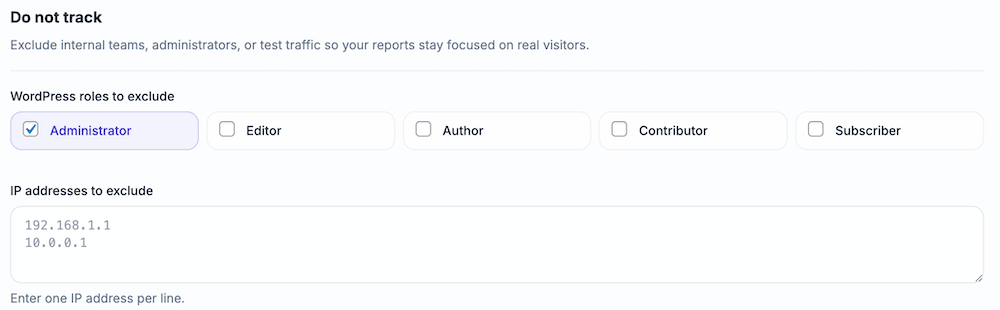
Use this area when your own team visits the site frequently and you do not want that traffic to affect reporting.
WordPress roles to exclude
This setting excludes logged-in users with selected WordPress roles from tracking.
Typical examples include:
- administrators
- editors
- authors
- contributors
- other internal users depending on your site setup
The default setup usually excludes Administrator traffic so that site owners and internal testing do not pollute reporting.
Use this when:
- your internal team logs into WordPress and visits the site
- administrators often test pages or forms
- editorial staff regularly browse the site while signed in
If a selected role is excluded, visits from logged-in users with that role are not tracked by the plugin.
IP addresses to exclude
This setting excludes traffic from specific IP addresses.
Enter one IP address per line.
Use this when:
- your office uses a stable public IP
- your team tests from a known environment
- staging or QA traffic comes from known addresses
- you want to exclude a monitoring or internal network source
This is especially useful for test traffic that does not depend on WordPress roles, such as:
- logged-out testers
- external QA teams
- office network traffic
- internal shared devices
Important note:
- this works best when the traffic comes from stable and known IP addresses
- if your team uses changing residential or mobile IPs, this may be less reliable than role-based exclusion
Advanced & Troubleshooting
This card contains maintenance and troubleshooting options.
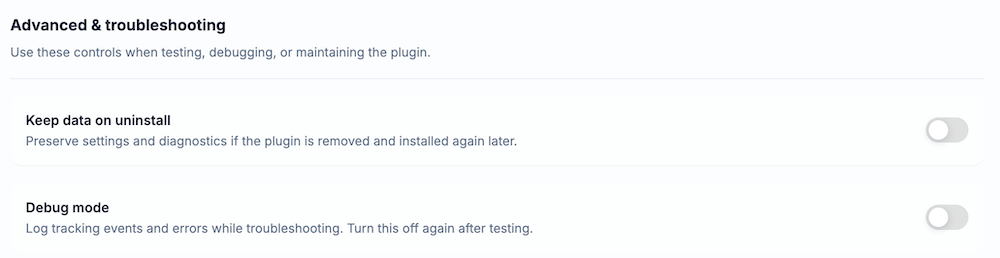
These settings are not part of the normal daily setup for most users.
Keep data on uninstall
This setting preserves plugin settings and diagnostics if the plugin is removed and installed again later.
Use this when:
- you may reinstall the plugin later
- you do not want to lose the current configuration
- you want to preserve troubleshooting context during maintenance
When enabled:
- plugin settings are kept after uninstall
- certain diagnostic information is also preserved
When disabled:
- uninstall is treated more like a clean removal
- plugin-related stored settings can be removed
Use this carefully depending on whether you want a fresh reset or a restorable setup.
Debug mode
This setting logs tracking events and errors while troubleshooting.
Use it when:
- testing a new setup
- troubleshooting connection or event-delivery issues
- working with OneLence support
- checking whether the plugin is sending data as expected
When enabled:
- the plugin records recent debug activity
- a recent activity log becomes visible on the page
- this can help diagnose tracking or delivery problems
When not troubleshooting, turn this setting off again.
That helps keep the setup cleaner and avoids collecting unnecessary debug information over time.
Recent Activity log
When Debug mode is enabled, the page can show a recent activity log.
This log helps you inspect recent plugin-side behavior, such as:
- recent tracking attempts
- recent errors
- diagnostic event details
Use Clear Log when you want to remove the current entries before running a fresh test.
Recommended Setup For Most Sites
For most WordPress websites, this is the best starting point:
- choose Server-side tracking
- keep Track page views enabled
- keep Bot filtering enabled
- exclude Administrator traffic
- add internal IP addresses only if you have stable known IPs
- leave Keep data on uninstall disabled unless you have a maintenance reason
- enable Debug mode only while testing or troubleshooting
Continue With The Next Setup Steps
After the tracking setup is confirmed, continue with the next relevant pages: